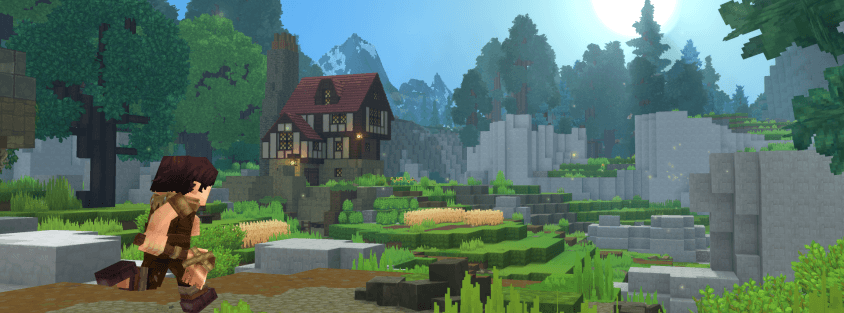
Most Hytale troubleshooting advice floating around right now was written for a build that's already been patched, which means half of it no longer applies and the other half never worked. This guide covers the three problems players actually hit in mid-2026 — crashes, "failed to connect" errors, and lag — with fixes that match the game's current state, not its January launch build.
Fixing Hytale Crashes
Hypixel Studios ships hotfixes for crashes almost every patch — the June 2026 update alone fixed a world crash tied to entity culling, crashes from rapid-fire Healing Totem placement across portal worlds, and server crashes triggered by multiple simultaneous player connections. If you're crashing constantly, updating to the latest version is the first thing to check, not the last.
- Update your GPU drivers. Outdated graphics drivers are the single most common cause of rendering-related crashes and black screens on startup. Grab the latest driver directly from NVIDIA, AMD, or Intel rather than whatever Windows Update installed months ago.
- Verify your game files. Corrupted downloads are a frequent cause of crash-on-launch issues. Use your launcher's repair or verify function to scan for missing or damaged files before assuming anything else is wrong.
- Close background apps before launching. Browsers, streaming software, and overlay tools all compete for the same CPU and GPU headroom Hytale needs, especially on hardware sitting near minimum spec.
- Check your system clock. An out-of-sync system time can cause authentication failures that present as a crash rather than a clear error message — enable automatic time sync in Windows if you haven't already.
If a crash keeps happening at the exact same moment — loading a specific world, using a specific item, joining a specific server — that's worth a proper bug report rather than a driver reinstall. Hytale's support site can attach your client log directly, which is far more useful to Hypixel Studios than a description of what happened.
Fixing Hytale Connection Errors ("Failed to Connect to Server")
A generic "failed to connect" error covers several unrelated causes, so work through these in order rather than guessing:
- Match your Windows language to English (US). This sounds unrelated, but a mismatched system language and regional format is one of the most common causes of an instant connection failure — the handshake between your client and the server breaks before it really starts. Check Windows display language and regional format settings if nothing else here fixes it.
- Check your firewall. Windows Defender or third-party security software will sometimes flag Hytale's network traffic and silently block it. Add an exception for Hytale rather than disabling your firewall entirely.
- Port forward correctly if you're hosting. Hytale connects over UDP only, on port 5520 by default — forwarding the equivalent TCP port does nothing. Enable UPnP on your router first, since it handles this automatically for most players; manual forwarding is only needed if UPnP is unsupported or disabled.
- Restart your router. Temporary routing errors clear up more often than they should, and it costs nothing to try before digging into settings.
- Switch to Ethernet if you're on Wi-Fi. Wireless interference and packet loss cause exactly the kind of intermittent handshake failures that look like a broken connection but are really a flaky signal.
If you're trying to reach a specific community server rather than your own world, confirm the server itself is actually online before troubleshooting your own setup — Hytale Top Servers shows live status badges for every listed server, so you can rule out "the server is down" in seconds instead of chasing a firewall rule that was never the problem.
Fixing Hytale Lag and FPS Drops
Lag and stuttering are almost always a settings problem, not a hardware failure — even on machines well above minimum spec:
- Lower your view distance first. It's the single setting with the biggest impact on both FPS and stutter, because it directly controls how many chunks load around you. Try 192 as a starting point, dropping to 160 or 128 if you still stutter while exploring new terrain.
- Turn off shadows and post-processing. Both are expensive relative to the visual payoff, especially on integrated graphics.
- Disable VSync and enable an unlimited or high frame cap instead — VSync adds input latency and can cause frame pacing issues on some display setups.
- Set Windows to High Performance power mode and enable Game Mode, so Windows isn't throttling the game to save battery on a plugged-in desktop or laptop.
- Disable fullscreen optimizations on the Hytale executable (right-click → Properties → Compatibility) if you're getting stutter specifically in fullscreen that doesn't happen in windowed mode.
If your own settings are already dialed in and the lag only happens on one particular community server, the bottleneck has moved from your PC to that server's hardware and view-distance configuration — worth knowing if you're the one running it. Our Hytale server hosting guide covers the CPU and RAM tiers that actually prevent this, and the official server manual specifically recommends capping view radius around 12 chunks (384 blocks) to keep lag under control for everyone connected.
When It's the Server, Not Your Game
It's worth ruling this out before you spend an evening reinstalling drivers: if crashes, disconnects, or lag only happen on one specific community server and your own worlds run fine, the problem almost certainly lives on that server's end, not yours. Overloaded hardware, an outdated mod, or a misconfigured view distance on the host side can all produce symptoms that look identical to a client-side problem. If a server you're on has gone consistently rough, browsing for a better-run alternative is often faster than troubleshooting a server you don't control — check the listing's live player-count trend first, since a server with erratic or declining numbers is frequently the same one struggling under load.
Still Stuck? Where to Get Real Help
If none of the above resolves it, Hytale's official support site takes bug reports directly, and attaching your client log turns a vague "it crashed" report into something Hypixel Studios can actually act on. For connection issues specific to a community server rather than the game itself, that server's Discord is usually faster than official support — server staff can tell you within minutes whether an issue is affecting everyone or just you.
The Bottom Line
Most Hytale crashes trace back to drivers or corrupted files, most connection errors trace back to regional settings or a blocked UDP port 5520, and most lag traces back to view distance before anything else. Work through the relevant section above in order, and check whether you're actually current on hotfixes before assuming a deeper problem.
If your troubleshooting keeps leading back to one particular server rather than your own setup, it might just be time to find a better one. Browse live, actively-monitored Hytale servers on Hytale Top Servers and filter by tag and player count — or if you're the one running a server people are reporting lag on, our hosting guide covers what to upgrade first.