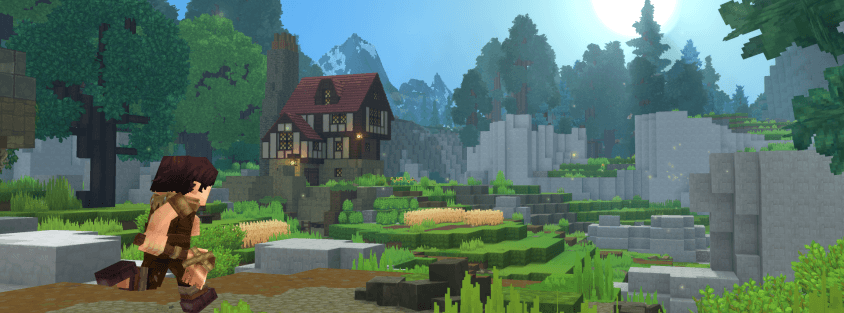
Every generic "how to set up a Discord server" guide skips two things that actually matter for a Hytale community: Update 5 added a native Discord integration inside the game itself that most server owners haven't turned on, and a Hytale server's Discord needs channels a normal gaming Discord doesn't — patch-note tracking for an Early Access game that ships updates every few weeks, live server status, and land-claim disputes chief among them. Here's the setup that actually fits a Hytale server, from the first channel to linking the in-game integration most owners don't know exists.
Why a Generic Discord Server Setup Doesn't Fit Hytale
Copy-pasting a template built for a general gaming community will technically work, but it misses what your players actually need to ask about. Hytale is still in Early Access, which means your Discord has to double as an information channel in a way a finished game's community doesn't: players need to know when an update lands and what it changed, whether your server is up before they alt-tab over to launch the game, and where to report a griefing incident or a claim dispute without it turning into a public argument in general chat. Build around those needs first, and the generic advice — roles, moderation, engagement — layers in naturally on top.
Step 1: Create the Server and Turn On Community Features
Start with a normal Discord server, then enable Community in Server Settings — it unlocks Server Discovery, welcome screens, and AutoMod, and it's worth doing even if you never intend to list your Discord publicly, since AutoMod alone is a meaningful first line of defense against spam and slurs with zero setup cost. Discord requires a rules channel and a moderation-activity channel to enable it, plus two-factor authentication on your own account — turn on 2FA for every staff member with elevated permissions while you're at it, not just yourself. Set your verification level to Medium to start: it blocks accounts created in the last few minutes, which stops the majority of raid bots without adding friction for real players.
Step 2: Build Channels Around How Your Server Actually Runs
Keep the channel count between roughly 8 and 15 across a handful of categories — 80% of your activity will land in three or four of them no matter how many you create, so resist building out every channel a template suggests on day one. A structure that fits how a Hytale server actually operates looks like this:
- Welcome & Info — #rules, #announcements, #patch-notes (repost Hypixel Studios' update notes here so players aren't hunting for them elsewhere), and #server-status if you're not already relying on your listing's live badge for that.
- Community — #general, #screenshots-and-builds, and a couple of voice channels. This is where most of your daily activity concentrates, so don't over-fragment it into ten hyper-specific text channels nobody checks.
- Support — #help-desk for new-player questions, #bug-reports, and a private #ban-appeals channel staff can access without airing every dispute in public.
- Events — #events-calendar and a #tournament-signup channel if you're running PvP brackets or build competitions.
- Staff-only — #mod-chat, #player-reports, and an audit-log channel, all invisible to regular members.
Land-claim and griefing disputes deserve their own private reporting path rather than a public thread — routing them through #player-reports instead of #general keeps arguments from spiraling in front of the whole community while staff sort out what actually happened.
Step 3: Set Up Roles and Permissions
Keep the hierarchy simple: Owner, Admin, Moderator, Verified Member, then @everyone. Give @everyone only the bare minimum — reading welcome and rules channels, nothing else — and unlock the rest of the server once someone verifies, whether that's a captcha, a reaction-role click, or just reading the rules and hitting an "I agree" button. Admins should be able to manage channels and roles; Moderators should be limited to kicking, timing out, and managing messages, without touching server settings. If your server has a tiered supporter system, mirror those tiers as Discord roles too — it's an easy way to make a paid perk visible to the rest of the community, and our monetization guide covers setting that up within Hytale's official policies if you haven't built one yet. This same Owner/Admin/Moderator split should mirror your in-game staff hierarchy too — our staff guide covers hiring, training, and setting up matching in-game permissions for each tier.
Step 4: Add Bots for Moderation, Verification, and Engagement
You don't need a dozen bots on day one — add them as a specific problem shows up, not preemptively. Three categories cover almost everything a Hytale community Discord needs:
- Moderation and logging. Auto-moderation bots (Discord's built-in AutoMod, or a dedicated bot like Dyno) catch spam and filtered words automatically and log deleted messages and bans somewhere staff can review later.
- Verification and reaction roles. A reaction-role bot like Carl-bot lets players self-assign a "Survival" or "PvP" role matching which of your game modes they actually play, which is more useful once your server runs more than one.
- Engagement. A leveling bot (MEE6 is the common choice) rewards active chatters with a visible rank, which costs you nothing and gives regulars a small reason to stick around and keep posting.
Automation matters more once you cross roughly 100 members — below that, a couple of trusted moderators checking in regularly does the same job with less overhead and fewer things that can misfire.
Step 5: Turn On Hytale's Native Discord Integration
This is the part most existing "set up a Discord" guides don't know to mention, because it shipped inside the game rather than as a server-side plugin: Update 5, released May 26, 2026, added a Social Sidebar with a built-in friends list, and it links directly to Discord. Players open the Social Sidebar in-game, link their Discord account with one click, and their Discord friends who also play Hytale show up automatically as in-game friends — avatar changes included. It's worth pointing this out to your community explicitly, since it's easy to miss: a quick pinned message in #announcements telling players to link their account in the Social Sidebar makes it noticeably easier for your Discord members to actually find each other in-game, without you building any verification bot to do it.
Be clear with your community about what this is and isn't — it's an account-level friends-list sync, not a server-owner tool for granting in-game roles based on Discord activity. Update 5 also added a Server Discovery browser inside the game's multiplayer menu, a separate feature worth knowing about alongside it; our full rundown of Update 5's other changes covers what else shipped in that same patch.
Step 6: Connect Your Discord to Your Server Listing
Your Discord and your Hytale Top Servers listing should reinforce each other, not sit as two disconnected properties. Pin your listing link in #announcements and in your server's welcome message, and mention your live status badge and player-count analytics there too — it's a faster way for members to check if the server's up than asking in chat. Going the other direction, put your Discord invite link at spawn and on your listing page itself, since players evaluating a server before joining treat an active, well-moderated Discord as one of the strongest signals that a community is actually worth their time. If growing your player base is the goal here, our growth playbook covers how voting reminders, events, and your Discord all feed into each other once the basics above are in place.
The Bottom Line
A Hytale server's Discord needs the same fundamentals as any gaming community — clear channels, a sane role hierarchy, a handful of bots added as needed — plus two things generic guides miss: channels built around Early Access patch notes and server status, and Update 5's native Discord account linking, which most server owners still haven't told their community about. Get Community features and a basic channel structure live first; roles, bots, and the Hytale-specific integration all layer in cleanly once that foundation exists.
Setting up the Discord is one half of building a real community — the other half is making sure players can find your server at all. List your server on Hytale Top Servers for free to get a live status badge and player-count analytics you can link straight from your new Discord, or browse existing servers to see how established communities structure theirs.